information
resources available for your success
lab schedule
print shop
equipment
tech specs
ftp access
resources
blackboard
Lab Schedules
Download the PDFs:
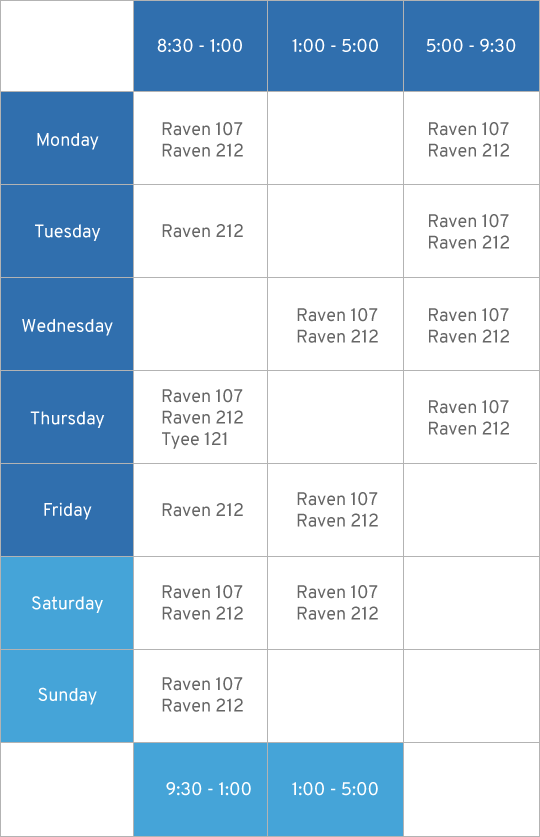
Labs available for student use:
| Monday | Tuesday | Wednesday | Thursday | Friday | Saturday | Sunday | ||
| 8:30 - 12:30 |
Raven 107 Raven 212 |
Raven 212 |
Raven 107 Raven 212 Tyee 121 |
Raven 212 |
Raven 107 Raven 212 |
Raven 107 Raven 212 |
9:00 - 12:30 | |
| 1:00 - 5:00 |
Raven 107 Raven 212 |
Raven 107 Raven 212 |
Raven 107 Raven 212 |
12:30 - 5:00 | ||||
| 5:00 - 9:30 |
Raven 107 Raven 212 |
Raven 107 Raven 212 |
Raven 107 Raven 212 |
Raven 107 Raven 212 |
Fine Arts Print Shop
For Fine Art Digital Inkjet Printing, please contact the Print Shop Tech, Gordon Ross.
Raven 109
gordon.ross@nic.bc.ca
250.334.5000 ext. 4255
Print services
- Roll and sheet inkjet printing. Printed on archival papers, backlit media and canvas.
- 4-colour separations and black & white film stencils. Printed on transparent film.
- 4-colour laser printing.
File types accepted (preferred):
- Tiff (flattened-no layers) using LZW (lossless) compression.
- PSD (flattened-no layers)
Submission of print projects/files
There are two ways to submit your files for printing:
- Files can be delivered directly to the Print Shop on a USB stick
- Files can be digitally transferred to the Print Shop by accessing the Print Shot Drop Box located on the Fine Arts Server.
Download the Print Forms
Colour Laser Prints
Photo Quality Sheets (mid format)
Photo Quality Rolls (large format)
Black on Transparent Film
Four Colour Separation on Film
Printing and payment
You are required to come to the Print Shop and review your file with Gordon before filling out the Print Shop order forms. This is to ensure that your file is ready for printing and to go over paper options and pricing.
After reviewing the print order, the Print Shop form is filled out and taken to the Book Store in Tyee for payment. Your Print Shop form will be stamped “Paid”.
Stamped forms are returned to the Print Shop as proof of payment and your print job enters the print queue of jobs to be printed.
Print requests will not enter the print queue until proof of payment has been received by the Print Shop Technician.
Production time
Under normal workloads, most files are printed within 2 days of payment. However, there are times when volume is high such as midterm and during final critiques. It is strongly recommended that students anticipate project due dates and submit work as early as possible. During high volume times you will need to be prepared to give the Print Shop at least one week lead time for printing. Please check in with the Print Tech for print turn-around times.
Equipment
Equipment Loan Program - Fine Arts Department
Interactive Media students have access to the Fine Arts Equipment Loan Program. Video cameras, digital SLR's, projectors, microphones, audio gear and more can be signed out on a 24-48hr loan from the Digital Tech Office / Print Shop in Raven Hall.
Stop by or contact Gordon Ross at gordon.ross@nic.bc.ca for more information.
Download the Borrower's Policy Agreement
Tech Specs for IMG Programs
IMPORTANT: As students you qualify for a number of discounts, both for software and hardware. Do not pay anything without researching educational pricing (which requires your student ID – see links below).
What computer should I buy?
While you can adapt most computers and operating systems to work for your IMG program, a Mac laptop (or desktop) is recommended. Both Mac and Windows will be used in the programs and as Mac has a dual booting option (which allows MS Windows to run on the same machine), we recommend students buy a Mac. If a student decides to purchase a Windows PC after all, that will work too. Research your choices well. Remember, you can run Windows software on a Mac.
Does the operating system matter?
It is important that your operating system and computer are relatively new. If purchasing a Mac you will have Mac OS X, then you can have a free copy of Window OS under the DreamSpark agreement. In the program you will also learn and use other Windows and open source software. The good news is, as a registered IMG student, most of these programs can be freely downloaded from the DreamSpark site or from the web.
How much ram/ storage/ size of screen - is there a minimum?
- 8Gb of RAM, 500Gb of storage on the hard drive is the minimum requirement.
- Eyes get tired when squinting at a tiny screen for any length of time. Think of your computer as an investment in your future.
What software is used in the program?
- Adobe Creative Cloud (CC) – see Adobe link for educational pricing
- You will also learn and use other Windows and open source software in the program. The good news is, for registered IMG students, Windows Operating Systems and most of other software programs (except for Adobe CC) can be downloaded for free from DreamSpark site or from the web.
Extras
- An external hard drive for backing up files would be useful, though not required (if you have a Mac, you might consider an AirPort Time Capsule).
- Memory stick (Flash Drive): 8 – 16 GB capacity
- For Mobile Development Certificate and 2nd year Web Development diploma students: an up-to-date Android device & Apple iOS device would be desirable, though not required.
Links:
Apple Educational Pricing
Adobe Educational Pricing
Microsoft Catalogue
Latest Reviews for Mac & PC Desktops
Consumer Report Computer Buying Guide
Mac Airport Time Capsule
FTP Access
FTP at NIC Interactive Media
FTP is short for File Transfer Protocol. A protocol is a set of rules that networked computers use to talk to one another. And FTP is the language that computers on a TCP/IP network (such as the internet) use to transfer files to and from each other.
You use an FTP client to log into an FTP server, navigate the server’s folder structure, and exchange files. That’s pretty much all FTP clients do — unlike Web browsers, FTP clients are tailor-made for such duties. The latest full-featured web editors like Dreamweaver have FTP fuctions built-in. As far as standalone FTP clients go, there are literally hundreds out there. Some are free, some are more expensive than a night on the town.
We recommend using Cyberduck or Fetch. Cyberduck can be used for PCs and Macs, and Fetch which is only good for Macs. Fetch generally costs money, but our NIC students can have it for free.
Download Cyberduck & Fetch Guidelines for FTP at IMG:
Web Hosting
Students enrolled in programming courses complete their coursework using the AWS web-hosting platform.
Each student is provided with a domain name and has access to unlimited bandwidth, databases and subdomains. Accounts will be set-up in class at the beginning of the semester.
Microsoft Imagine
Microsoft Imagine connects students with the tools, resources and experiences they need to elevate their skills for today's working world. Whether it's building a game, designing an app or launching a project, Microsoft Imagine helps students develop their ideas and boldly bring them to life.
Sign in or create an account to download these software & development tools at no cost.
Microsoft ImagineMicrosoft Office
It's not a trial! Students and teachers are eligible for Office 365 for Education, which includes Word, Excel, PowerPoint, OneNote, and now Microsoft Teams, plus additional classroom tools. All you need to get started is a valid school email address.
Get started.
Microsoft Office 365